


SSRS Deployments

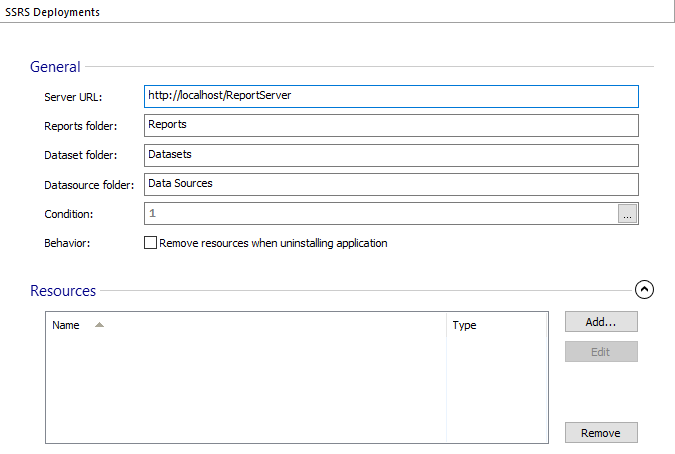
This section allows you to configure SSRS deployments which will be executed during installation. You might use it if the installation needs to upload reports, datasets or data sources to an instance of Microsoft SQL Server Reporting Services.
 To create a new deployment use the
toolbar button or the “New deployment” context menu item.
To create a new deployment use the
toolbar button or the “New deployment” context menu item.
To impersonate the current user, use the “Impersonate installing user” context menu option. You can check this option if you want to run the deployment as the user installing the application, not under the Local System account.
General
Server URL
URL of the Report Server Web Service (e.g. http://localhost:80/ReportServer_INSTANCENAME). Edit this field using Smart Condition Edit Control.
Reports folder
The name of the target folder where the reports will be deployed. Edit this field using Smart Condition Edit Control.
Dataset folder
The name of the target folder where the datasets will be deployed. Edit this field using Smart Condition Edit Control.
Datasource folder
The name of the target folder where the datasources will be deployed. Edit this field using Smart Edit Control.
Condition
The condition for reports deployment. Edit this field using Smart Condition Edit Control.
Remove resources when uninstalling application
By enabling this option all reports' resources are removed during uninstall.
Resources
Here you can add and edit the files needed for the deployment (report, dataset and datasource files).
Adding a new resource
Select your resources using the button.
Editing an SSRS deployment
Use the button, the “Edit...” context menu item or press the Space key while an element from the list is selected. The "Edit SSRS resources dialog" will be displayed allowing you to edit the properties of the resource's deployment.
Removing an SSRS deployment
To remove an existing resource use the button.
 You can target the deployment to a server that is running on a different machine than the
one where the installer is running, only if the machines are connected to the same
domain.
You can target the deployment to a server that is running on a different machine than the
one where the installer is running, only if the machines are connected to the same
domain.
 For performing the deployment, Advanced Installer uses a tool which is part of the
Reporting Services component of the SQL Server. Therefore you must have an instance of the SQL
Server installed on the machine where you are running the install package.
For performing the deployment, Advanced Installer uses a tool which is part of the
Reporting Services component of the SQL Server. Therefore you must have an instance of the SQL
Server installed on the machine where you are running the install package.
 For more detailed help, please press the F1 key.
Edit SSRS resources dialog
This dialog allows you to edit a file needed for the deployment.
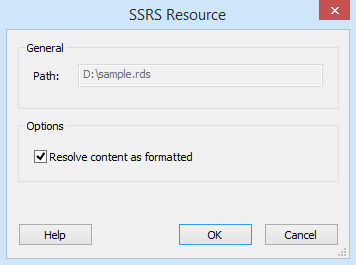
Path
Represents the path of the deployment resource.
Options
Enable the Resolve content as formatted option if you want to resolve the file's content as formatted. This means that any word from the file enclosed between angular brackets will be considered a Windows Installer property and replaced with the value of that property at install time.
The option to resolve the file's content as formatted must only be used if the file
does not contain between angular brackets( [, ] ) words which are not Windows Installer properties. If it
contains such words, they will resolve to empty strings and corrupt the file
contents.