


Query WMI and BIOS information using PowerShell

Windows Management Instrumentation (WMI) provides access to detailed information about the hardware and operating system configuration of a Windows computer. This information can be useful when an installer needs to detect hardware characteristics or firmware settings before installing an application.
Advanced Installer PowerShell custom actions can query this information using Get-CimInstance. The retrieved values can then be stored in Windows Installer properties through the Session.Property collection and used by other installer logic.
This tutorial demonstrates how to create a PowerShell custom action that retrieves the computer manufacturer and model, BIOS manufacturer and version, and the hardware virtualization status reported by Windows. The detected information is stored in installer properties and displayed in a message box.
1. Create project
Launch Advanced Installer and create a new project.
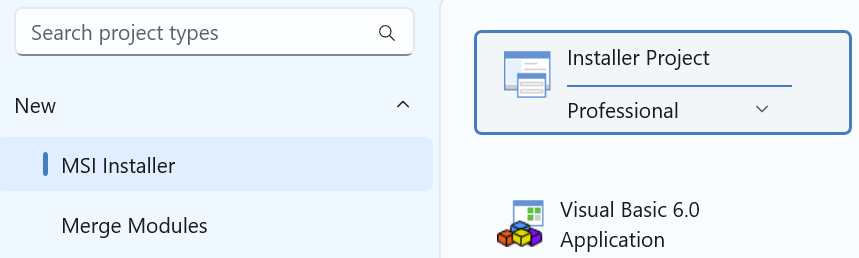
 Save the project using a meaningful name, such as WMI and BIOS
Check.
Save the project using a meaningful name, such as WMI and BIOS
Check.
2. Choose the system information to retrieve
In this sample, the PowerShell script retrieves information from three standard Windows CIM classes:
- Win32_ComputerSystem - provides the computer manufacturer and model.
- Win32_BIOS - provides information about the system BIOS, including its manufacturer and SMBIOS version.
- Win32_Processor - provides processor information, including the VirtualizationFirmwareEnabled property used to determine whether hardware virtualization is enabled in the system firmware.
The Get-CimInstance PowerShell cmdlet can be used to query these classes:
$computerSystem = Get-CimInstance -ClassName Win32_ComputerSystem

$bios = Get-CimInstance -ClassName Win32_BIOS

$processor = Get-CimInstance -ClassName Win32_Processor |
Select-Object -First 13. Add the PowerShell custom action
Open the Custom Actions view and add a PowerShell custom action.
The custom action queries the system information and stores each retrieved value in a Windows Installer property using the Session.Property collection.
For more information about accessing Windows Installer properties from PowerShell, see the Access Session object from PowerShell how-to article.
Use the following PowerShell script:
# Advanced Installer PowerShell Custom Action
#
# This sample demonstrates how to:
#   - Query computer information through WMI/CIM
#   - Query BIOS information through WMI/CIM
#   - Query whether hardware virtualization is enabled in BIOS/UEFI
#   - Store the retrieved values in Windows Installer properties
#   - Display the detected information in a message box


# ------------------------------------------------------------
# Query computer information
# ------------------------------------------------------------

$computerSystem = Get-CimInstance -ClassName Win32_ComputerSystem


# ------------------------------------------------------------
# Query BIOS information
# ------------------------------------------------------------

$bios = Get-CimInstance -ClassName Win32_BIOS


# ------------------------------------------------------------
# Query processor information
#
# The VirtualizationFirmwareEnabled property indicates whether
# hardware virtualization is enabled in the system firmware.
# ------------------------------------------------------------

$processor = Get-CimInstance -ClassName Win32_Processor |
             Select-Object -First 1


# ------------------------------------------------------------
# Store the retrieved values in Windows Installer properties
# ------------------------------------------------------------

$Session.Property["WMI_MANUFACTURER"] = $computerSystem.Manufacturer
$Session.Property["WMI_MODEL"] = $computerSystem.Model

$Session.Property["BIOS_MANUFACTURER"] = $bios.Manufacturer
$Session.Property["BIOS_VERSION"] = $bios.SMBIOSBIOSVersion


if ($processor.VirtualizationFirmwareEnabled -eq $true)
{
    $Session.Property["BIOS_VIRTUALIZATION_ENABLED"] = "Yes"
}
else
{
    $Session.Property["BIOS_VIRTUALIZATION_ENABLED"] = "No"
}


# ------------------------------------------------------------
# Build the message displayed to the user
# ------------------------------------------------------------

$message = @"
System information detected:

Computer Manufacturer: $($Session.Property["WMI_MANUFACTURER"])
Computer Model: $($Session.Property["WMI_MODEL"])

BIOS Manufacturer: $($Session.Property["BIOS_MANUFACTURER"])
BIOS Version: $($Session.Property["BIOS_VERSION"])

Virtualization enabled in BIOS/UEFI: $($Session.Property["BIOS_VIRTUALIZATION_ENABLED"])
"@


# ------------------------------------------------------------
# Display the retrieved information
# ------------------------------------------------------------

Add-Type -AssemblyName System.Windows.Forms

[System.Windows.Forms.MessageBox]::Show(
    $message,
    "WMI and BIOS Information",
    [System.Windows.Forms.MessageBoxButtons]::OK,
    [System.Windows.Forms.MessageBoxIcon]::Information
)The script stores the retrieved information in the following installer properties:
| Property | Value |
|---|---|
| WMI_MANUFACTURER | Computer manufacturer reported by Win32_ComputerSystem. |
| WMI_MODEL | Computer model reported by Win32_ComputerSystem. |
| BIOS_MANUFACTURER | BIOS manufacturer reported by Win32_BIOS. |
| BIOS_VERSION | SMBIOS version reported by Win32_BIOS. |
| BIOS_VIRTUALIZATION_ENABLED | Yes or No, based on the VirtualizationFirmwareEnabled value reported by Win32_Processor. |

4. Execute the custom action
Schedule the PowerShell custom action during the installation so that the system information is retrieved while the Windows Installer session is active.
When the custom action runs, the script queries the corresponding CIM classes, saves the detected values in installer properties, and displays them in a message box.

5. Use the retrieved values in your installer
After the PowerShell custom action executes, the retrieved values are available as Windows Installer properties. This allows the detected system information to be used by other installer logic.
For example, an installer could check the computer manufacturer or model, require a specific BIOS version, or verify whether hardware virtualization is enabled before allowing a particular operation.
 The sample displays the retrieved information in a message box for demonstration
purposes. In a production installer, the properties can instead be evaluated by installer
conditions or other custom actions according to the application's system requirements. To
prevent installation based on the result of the custom action, check the Abort installation based on a custom scenario sample
article.
The sample displays the retrieved information in a message box for demonstration
purposes. In a production installer, the properties can instead be evaluated by installer
conditions or other custom actions according to the application's system requirements. To
prevent installation based on the result of the custom action, check the Abort installation based on a custom scenario sample
article.
6. Build and install
Build and run the project. When the PowerShell custom action executes, it queries the computer, BIOS, and processor information and displays the detected values.
For example, the message can display the computer manufacturer and model, BIOS manufacturer and version, and whether hardware virtualization is enabled in BIOS/UEFI.
7. Summary
In this tutorial, you learned how to use a PowerShell custom action to:
- Query computer information using Win32_ComputerSystem.
- Query BIOS information using Win32_BIOS.
- Check the hardware virtualization status using Win32_Processor.
- Store the retrieved values in Windows Installer properties through Session.Property.
- Display the detected system information during installation.
The same approach can be extended to other WMI/CIM classes and properties when an installation needs to detect hardware or system-specific information.