What Is a .pkg File, and How to Open It?
In a previous blog article, we discussed what an EXE setup file is, the difference between EXE and MSI installers, and other general details related to Windows’ setup.exe.
In this article, we’ll explore beyond the Microsoft ecosystem and move to Apple territory: .pkg files.
What Is a .pkg File?

A .pkg file is an Apple installer file type, similar to MSI on a Windows PC.
This file contains all the necessary files, scripts, and metadata to install an application on macOS.
Windows | macOS | |
|---|---|---|
Installer | .MSI | .PKG |
Executable | .EXE | .APP |
The built-in macOS installer.app processes the .pkg file, just as the proprietary Windows Installer handles the MSI on a Windows device.
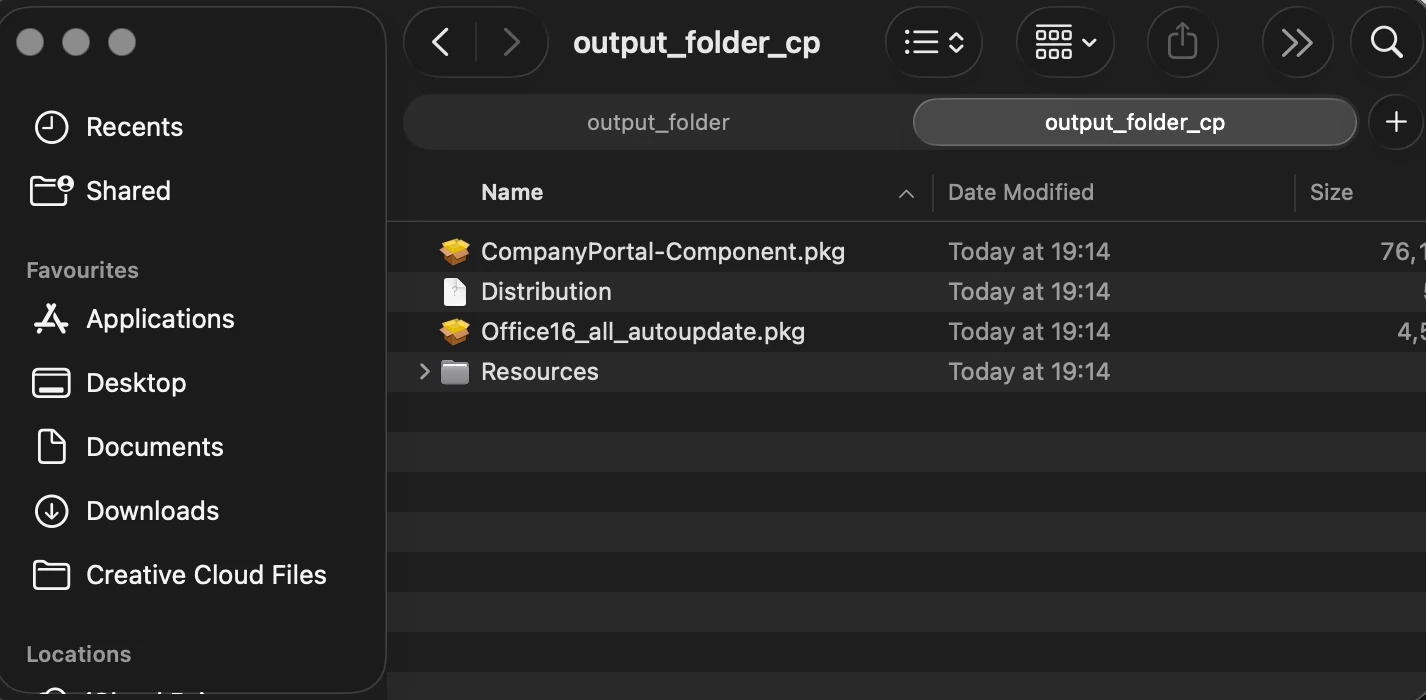
A .pkg file can hold a single app or a bundle of resources and scripts.
Up next, let’s access the content of a few .pkg files by opening the terminal on the Mac device and entering the following command:
pkgutil --expand yourfile.pkg output_folder
Think of this command as the /extract parameters of a setup.exe file.
For example, a setup.exe installer created with Advanced Installer has the following command:
Mypackage.exe /extract "C:\My work"
Moving on to our demonstration, this is what a pkg file containing a simple file looks like:
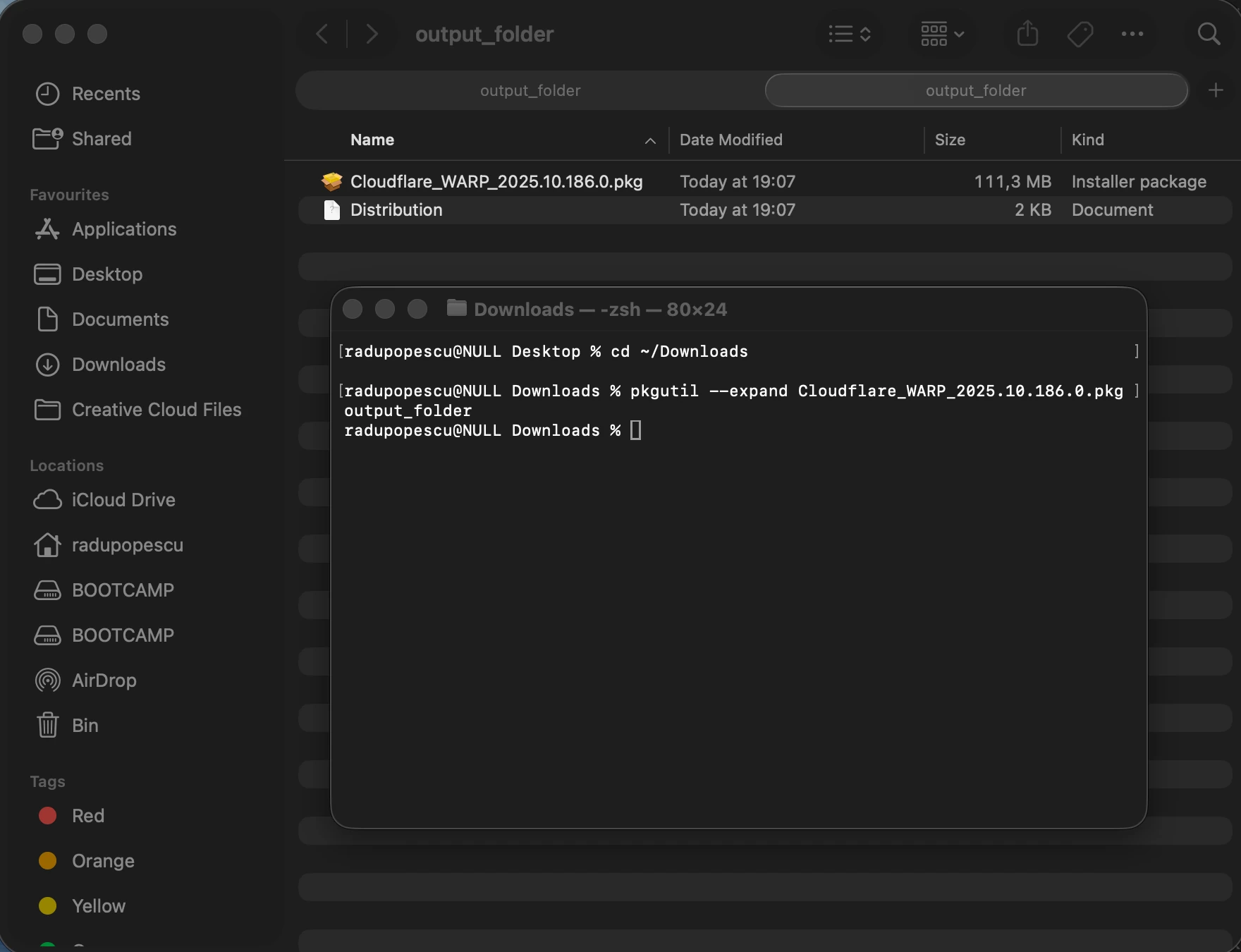
As you can see, this one has another .pgk file inside and an instruction file.
Here’s the second case, where it’s a “bundle”:
How Do I Open a .pkg File on Mac?
Now that we know how to access the content of a .pkg file with the native macOS tool pkgutil, it’s time to see how we open a .pkg file on a Mac.
The answer is simple: double-clicking on the .pkg file. This will trigger the following actions:
- Validate the package signature
- Show the installation wizard
- Prompt for administrator password (if required)
- Install files in the system or user directories
- Run any installation scripts
How Do I Open a .pkg File on Windows?
Short answer: You cannot open a .pkg file if you do not use a macOS device.
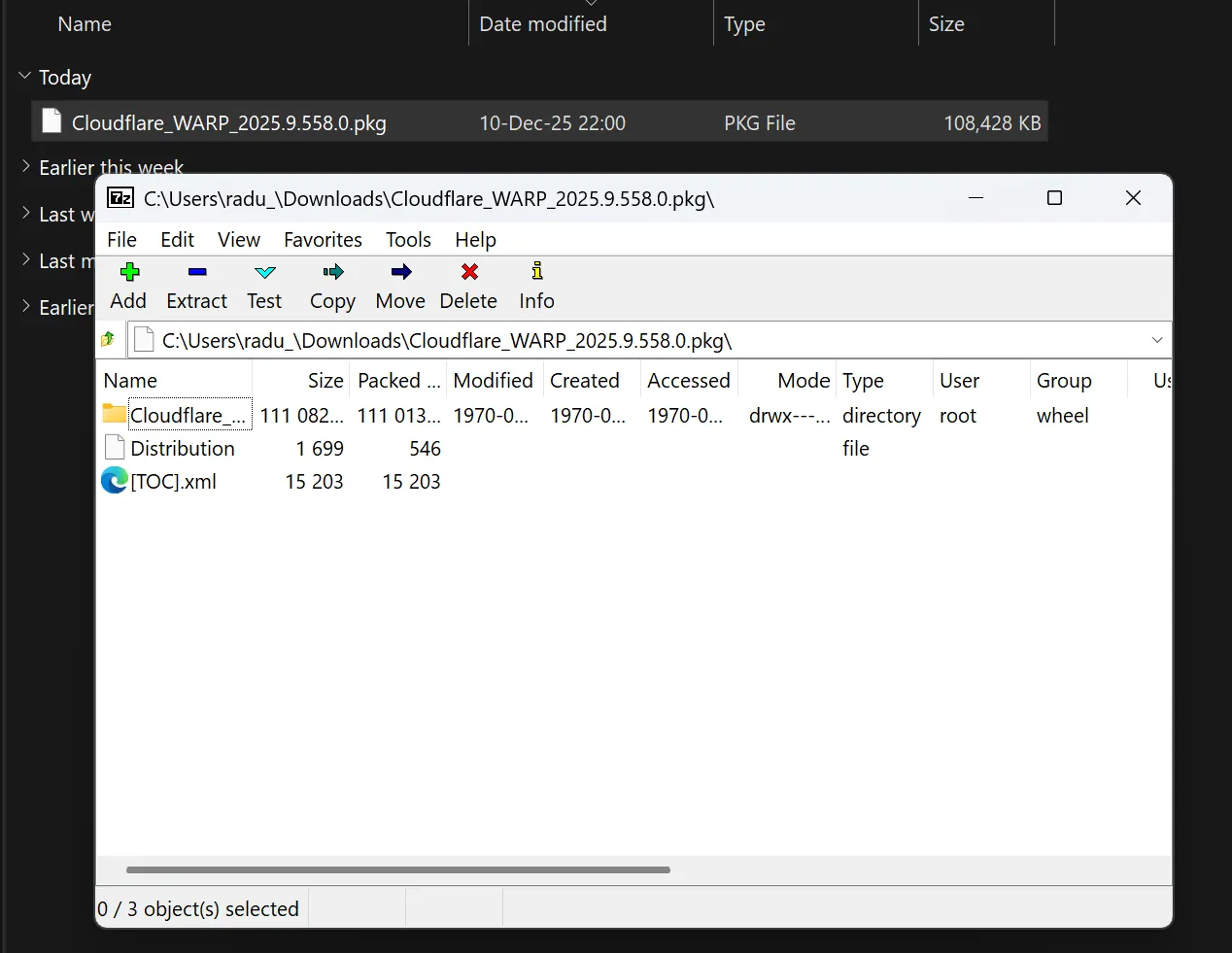
However, if you want to extract the content of a .pkg file on a Windows device, you can use unpacking tools such as 7-Zip.
Here is an example of the Cloudflare Warp client:
In a different article, we discussed how to open an EXE file on a macOS device and mentioned virtual machines as a solution.
On Windows, we can’t open .pkg files using a virtual machine. Why? Because, according to Apple's official license agreement, installing macOS on non-Apple hardware isillegal.
Final Takeaways
- A .pkg file is a type of Apple installer, just like how EXE and MSI are to Windows
- You can use the pkgutil macOS tool to access the contents of the .pkg file on a Mac device with this command: pkgutil --expand yourfile.pkg output_folder
- To open a .pkg file on Mac, just double-click on it
- On Windows, the .pkg file can’t be opened, but you can extract its contents with unpacking tools such as 7-Zip.
- You can’t use a virtual machine to open .pkg files on Windows because Apple's official license agreement says it’s illegal to install macOS on non-Apple hardware.
Conclusion
The .pkg file is the macOS native installer, and there is a simple way to open it on a Mac device. You can use pkgutil to see what’s inside.
While you cannot open and install a .pkg file on a Windows operating system, there is a very high chance that you can find that app available in an MSI or EXE installer. If not, other similar apps for sure do the same thing.
Have you ever explored the contents of a .pkg file yourself? How did it go?
Written by

Radu Popescu
Technical Writer at Advanced Installer, Technical Engineer on various enterprise client projects. Experienced in Software Packaging, SCCM infrastructure and System Administrating. Tech enthusiast and music producer in his spare time.