The Windows Installer Session Object Is Now in PowerShell Custom Actions
If you’ve been around the Windows application packaging scene for a while, you probably know that VBScript has been on its way out for some time.
Microsoft deprecated VBScript in 2023, and while it hasn’t disappeared overnight, it will eventually stop shipping as part of Windows.
For MSI packages, this is significant because VBScript has long been the go-to scripting language for custom actions, but this is because VBScript is natively interpreted by the Windows Installer technology. Keep in mind that this technology has been around for over 20 years.
One area where VBScript offers a simple approach is the Session object, which allows us to get and set installer properties and feature states, log what is happening during an installation, and so on.
PowerShell is the obvious choice at this point because it is powerful, modern, and already embedded in enterprise IT workflows and environments.
However, there is a catch: VBScript custom actions had native access to the Windows Installer Session object, whereas PowerShell has no built-in equivalent.
You can’t just grab the Session object the way VBScript could, so packagers have to use awkward workarounds like interop calls, helper functions, or simply avoid this and lose some functionality in the process.
Advanced Installer 23.8 changes this, and PowerShell Custom Actions now automatically include the Session object, giving you the same capabilities you had in VBScript.
Let’s take a look at the Session Property from the PowerShell Custom Action to see what you can do with it.
Using the MSI Session Object in PowerShell Custom Actions

Before we get started, we should point out that the Session object is not a standard PowerShell or MSI feature.
This is specific to Advanced Installer’s built-in PowerShell custom action support, and it will not be available outside of an MSI context or if you are working with other software packaging tools.
This is an out-of-the-box implementation provided by Advanced Installer, which is automatically injected into the script execution environment when your custom action runs as part of an installation.
So, what is available with this Session object, and what can you do with it?
Well, the most common requirement for packagers during a custom action execution is the ability to set and get property values. With the Session object, this is now a single line:
$productVersion = $Session.Property["ProductVersion”]
$productName    = $Session.Property["ProductName"]
That's how simple it is to get some properties with PowerShell using Advanced Installer. You can also write back by setting a property with $Session.SetProperty(), which updates it for the rest of the installation, so any actions that run after yours will see the new rule.
This is just as simple as getting a property. To set a custom property, the code would look like this:
$Session.Property["APPDIR"] = "C:\Test\$prodVer\"
Just make sure to set the custom action early enough so that whatever depends on the property hasn’t already run. In the above example, the custom action needs to be scheduled after the CostInitialize.
Logging is equally simple, and instead of relying on Write-Host and hoping something captures it, you can write directly into the MSI log:
$MSI_MESSAGE_INFO = 0x04000000
$Session.Message($MSI_MESSAGE_INFO, "Custom action reached: version is $productVersion")
This is very useful for troubleshooting installations in an enterprise environment, where you are reading log files after something happened and you want to know what your custom action observed during the runtime.
The same patterns apply to feature and component state, and you can check what is currently installed, as well as what the user or installation logic requested.
You can even modify the requested state if your custom action needs to drive that decision programmatically:
$currentState = $Session.FeatureCurrentState["MainFeature"]
$requestState = $Session.FeatureRequestState["MainFeature"]
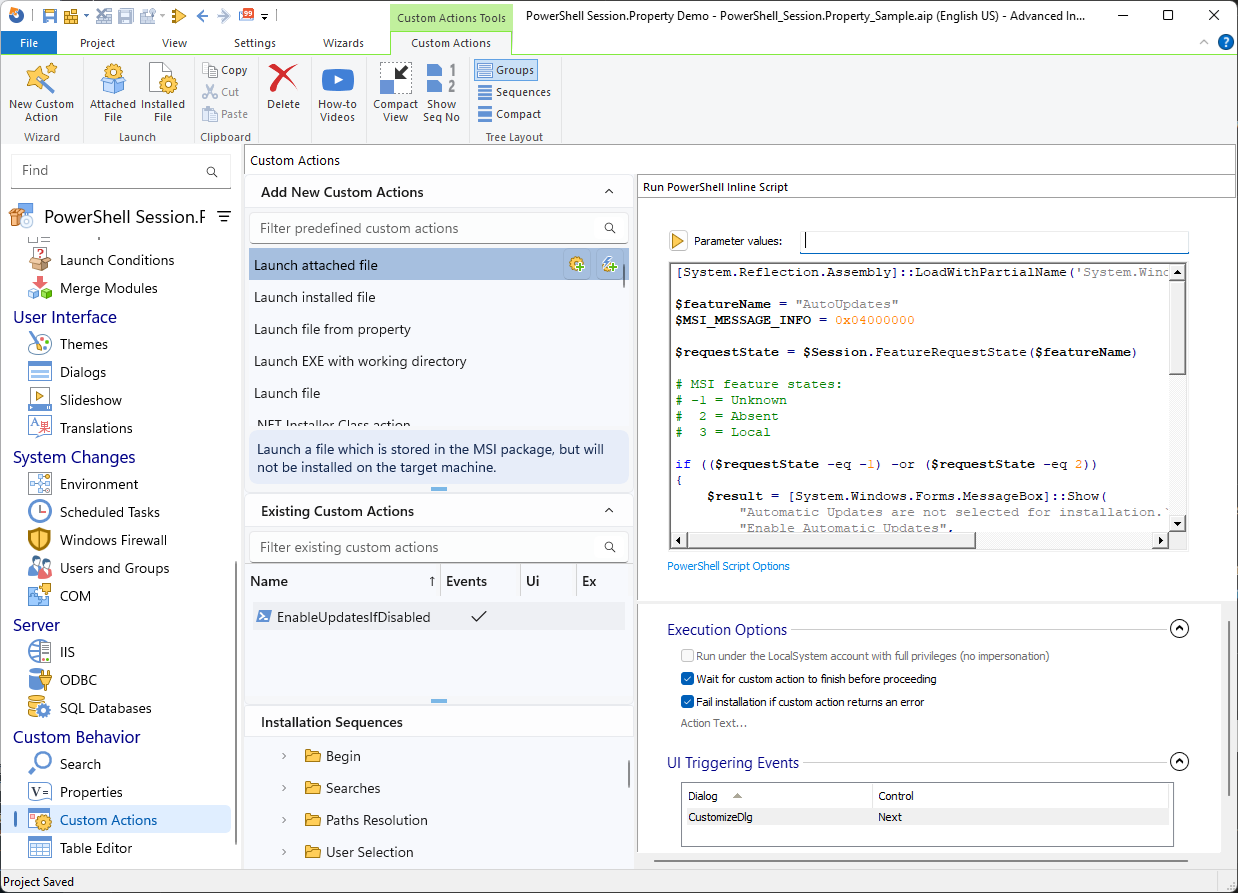
The state values adhere to standard Windows Installer conventions:
- -1 for unknown
- 2 for absent
- 3 for local
If you are already familiar with VBScript, you will feel right at home with PowerShell.
Another frequent check that software packagers do in custom actions is determining what kind of operation is running, especially when a custom action should behave differently during a first-time install versus an upgrade or uninstall.
$installed = $Session.Property["Installed"]
$remove    = $Session.Property["REMOVE"]
if ($remove -eq "ALL") {
    # Uninstall path
} elseif ($installed) {
    # Maintenance or upgrade
} else {
    # Fresh install
}This is functionally identical to how you would do it in VBScript, which makes migrating existing custom actions quite easy once you get past the small syntax differences.
If you have a library of VBScript custom actions and are considering when to migrate, the Session availability in PowerShell removes one of the last real blockers. The logic translates more or less directly, and it’s simply a matter of PowerShell syntax rather than rethinking what the action does.
Another thing to keep in mind is that Advanced Installer still exposes the AI_GetMSIProperty and AI_SetMSIProperty as helper functions for backward compatibility, which will continue to work.
If you already have existing PowerShell actions that use those functions, you don’t need to change anything. However, for new custom actions, using the Session object directly gives you the full functionality and keeps your code aligned with how Windows Installer actually works.
Watch the Video Tutorial
If you'd rather see the Session object in action than read through code samples, we've also put together a video walkthrough covering everything discussed in this article.
Watch the video below to see these examples demonstrated step by step in Advanced Installer.
Conclusion
The Session object has always been the difference between VBScript and PowerShell custom actions in MSI packaging, so everything else about PowerShell made it the better choice, but that one missing piece kept a lot of packagers from fully committing to the migration.
With Advanced Installer 23.8, that gap is closed. The Session object is available in PowerShell custom actions with the same interface you'd expect from VBScript, covering properties, feature and component states, logging, and operation mode detection.
If you haven’t yet moved your custom actions to PowerShell, now is a good time to start.
 Ready to move beyond VBScript?
Try Advanced Installer 23.8 and build PowerShell custom actions with full MSI Session support: https://www.advancedinstaller.com/trial.html
Final Takeaways
- Microsoft deprecated VBScript in 2023. While it hasn’t disappeared overnight, it will eventually stop shipping as part of Windows.
- PowerShell is the obvious choice to replace VBScript because it is quite powerful, modern, and already embedded in an enterprise IT workflow and environment.
- Advanced Installer 23.8 with its PowerShell Custom Actions includes the Session object, giving you the same capabilities you had in VBScript.
- With $Session.Property(), you can set and get property values.
- You can also write back by setting a property with $Session.SetProperty(), which updates it for the rest of the installation, so any actions that run after yours will see the new rule.
- Instead of relying on Write-Host and hoping something captures it, you can write directly into the MSI log using $Session.Message()
- You can even modify the requested state if your custom action needs to drive that decision programmatically with $Session.FeatureCurrentState() and $Session.FeatureRequestState()
- Advanced Installer still exposes the AI_GetMSIProperty and AI_SetMSIProperty as helper functions for backward compatibility
Written by

Alex Marin
Application Packaging and SCCM Deployments specialist, solutions finder, Technical Writer at Advanced Installer.