The meaning of “Log on as a Service” and when to use its policy
In this article, we will learn what “Log on as a Service" is, when and where to use it, and how to enable it.
Let’s get started!
What is Log on as a service?

According to Microsoft documentation, log on as a service is a user permission right (SeServiceLogonRight) that allows the Service Control Manager (SCM) to log on an account using the service logon type (LOGON32_LOGON_SERVICE), allowing it to run a Windows service whether or not a user is interactively logged on
The security context from which this service is executed determines if the service can access local or network resources. By default, services run under Local System, Local Service, and Network Service accounts.
Local System, Local Service, and Network Service accounts are the predefined accounts in a Windows operating system. When you install a service using a Service User account, you need to specify the user name and password of the account. The reason behind it is the built-in CreateService function that is called during this operation. It modifies the configuration information for the chosen service in the service control manager database. The Service Control Manager then validates and securely stores the credentials using the Local Security Authority (LSA.
How to enable Log on as a service?
The Log on as a service permission is granted through a domain policy or a local group policy.
If you want to enable Log on as a service for a local group policy, follow these steps:
1. Log in with an administrator account to the computer you want to provide the Log on as Service permission.
2. From Administrative Tools, click Local Security Policy.
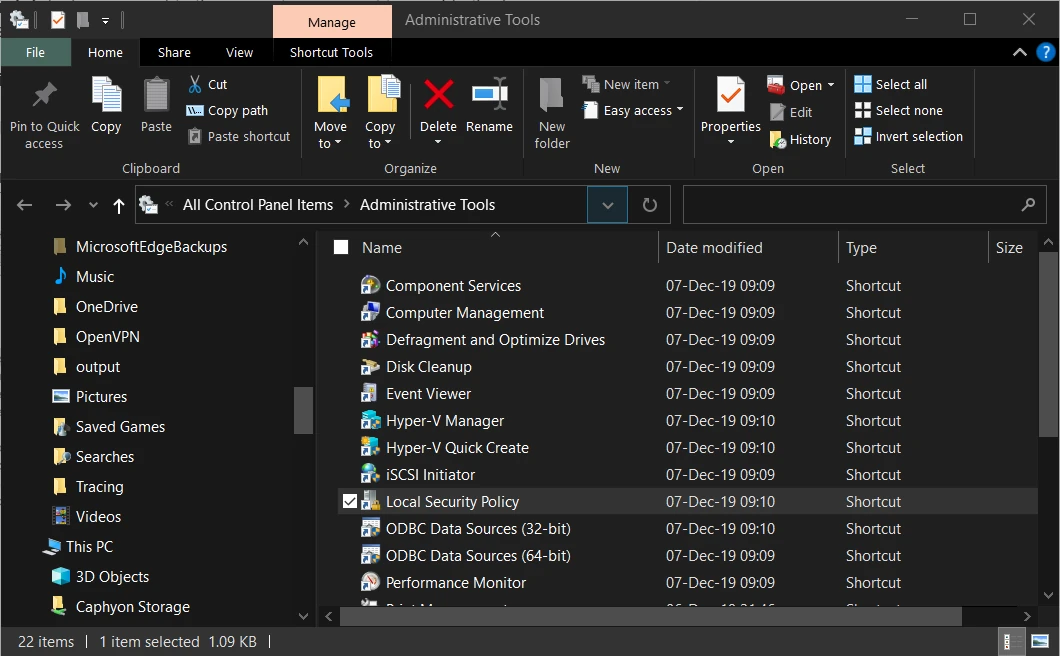
3. Expand Local Policy and click User Rights Assignment.
4. Right-click Log on as a service and select Properties.
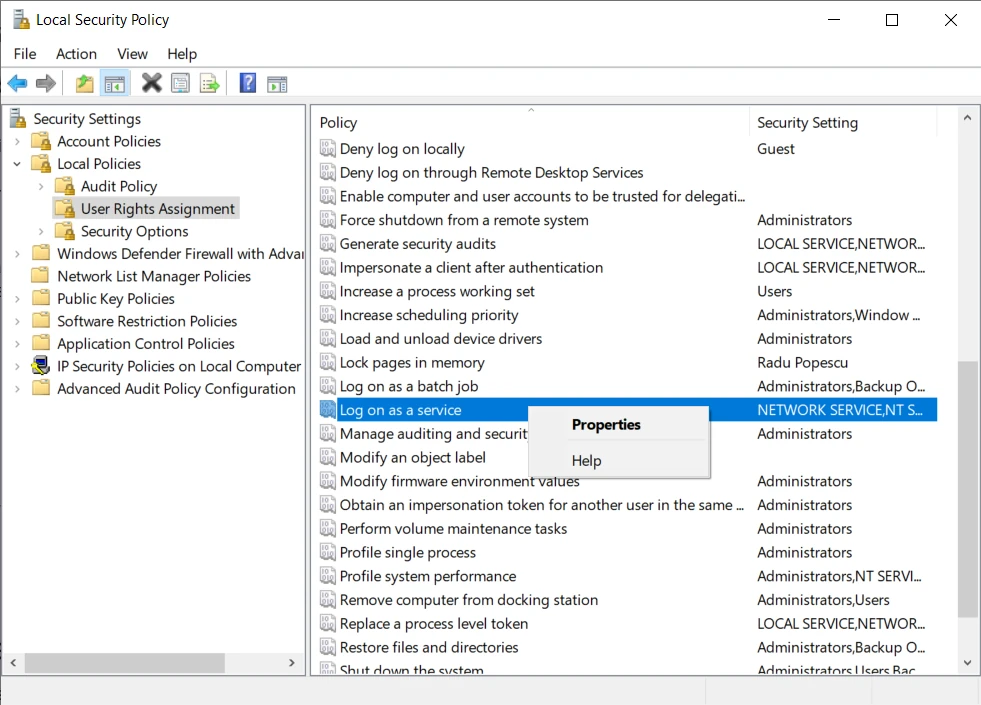
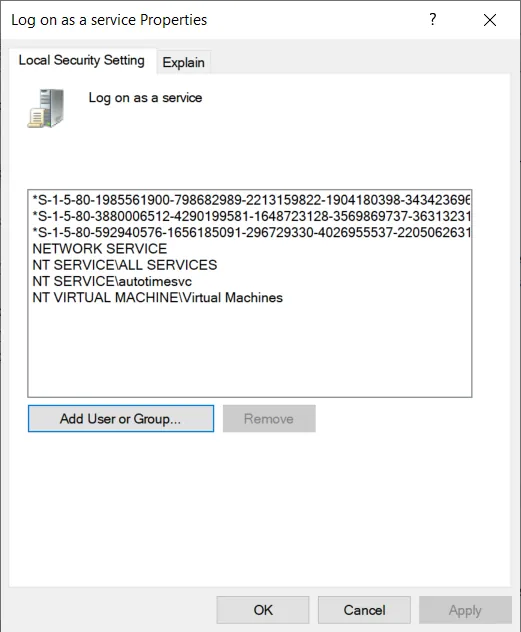
5. Click on the Add User or Group option to add the new user.
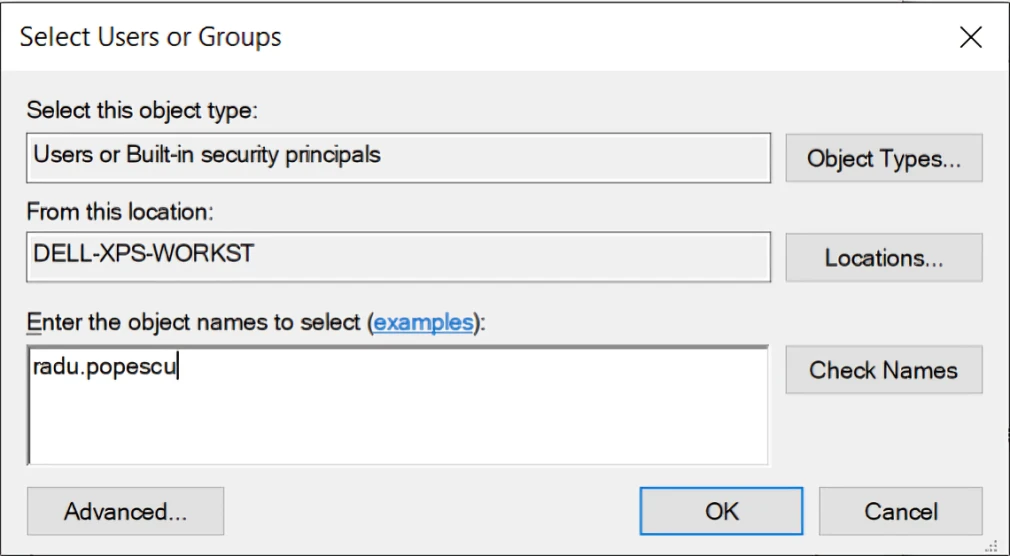
6. In the Select Users or Groups dialogue, find the user you wish to add and click OK.
Important: If the “Log on as a service” right is defined in a domain-level Group Policy Object (GPO), any local changes made through Local Security Policy will be overwritten during the next Group Policy refresh.
How to install a service with Log on as a service policy?
To install a service, you can use the “Log on as a Service” policy.
For this scenario, we will use Advanced Installer’s built-in Service functionality to create a package installer with a service.
Are you new to Advanced Installer? Try out our Service functionality through our 30-day full featured trial (no card required).
To see how to achieve that, follow these steps:
1. Go to Service Page -> Accounts
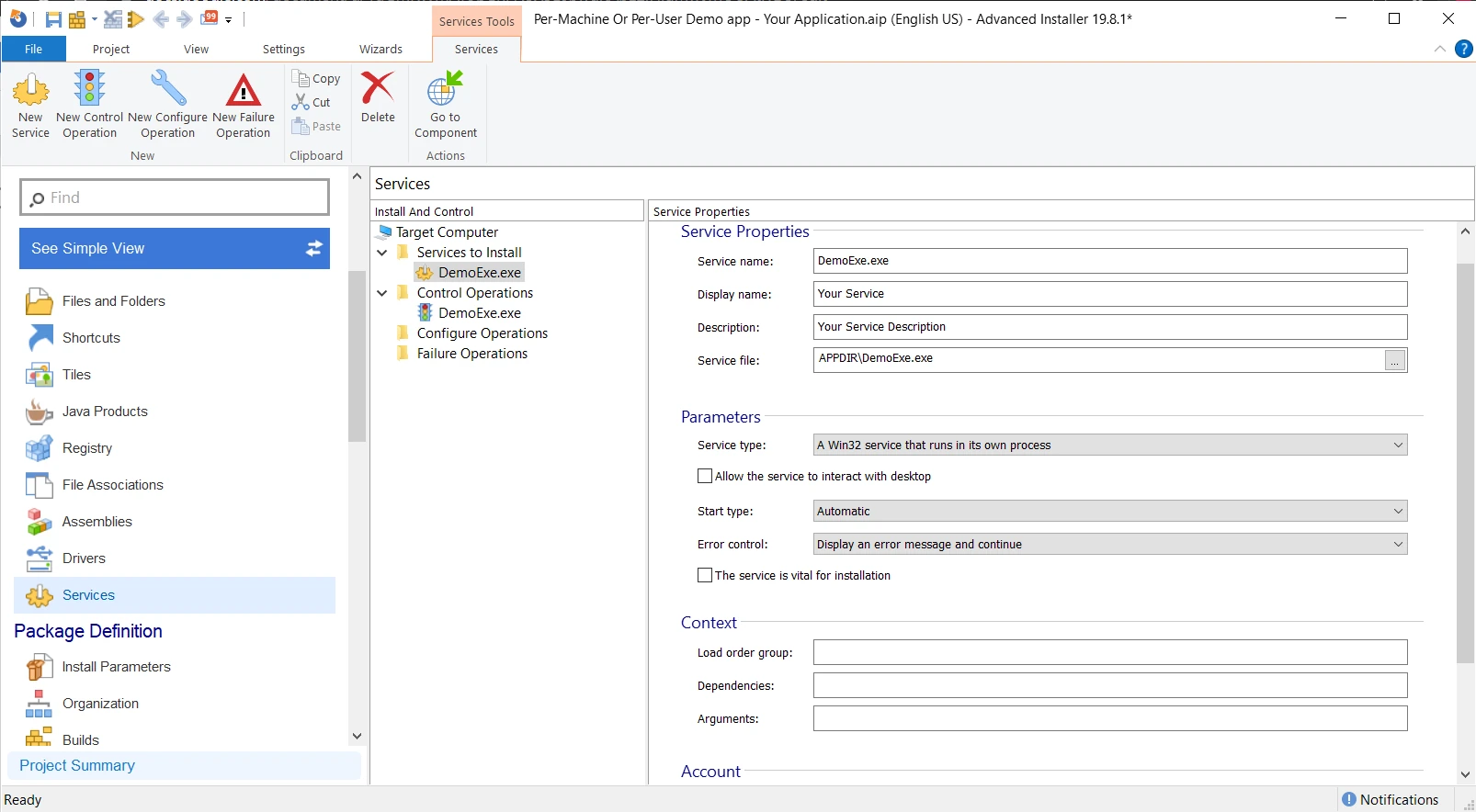
2. Once there, under the Account, you can specify: Start Name (the user account under which your service will run) and Password (the password for the service user account).
3. Set “Log on as a Service”' policy. When this option is checked, the Log on as a Service policy is set for the specified user account.

 The above steps apply to an existing user (present on the machine). If you want to install a service for a new user created by your installer package, follow our full guide on How to install a service for a custom userhere.
When and where to use Log on as a Service?
If you don't want to run every service as a System, Network, or Local service account, you need to set up the service user account and assign it the Log on as a Service right.
The main benefit of using Service Accounts is the low risk of a security breach. If at some point your service is compromised, attackers will be unable to access its resources because they are protected by the security context of the account running it - rather than the SYSTEM-level security context that SYSTEM and NetworkService accounts have.
That’s why the best practice is to assign service install permissions only to accounts that services run under and to run individual services under service accounts that are configured using the principle of least privilege (only give them the permissions they need to run; don't give them admin or SYSTEM privileges).
Using Group Managed Service Accounts (gMSA)
In enterprise environments, a Group Managed Service Account (gMSA) can be a better alternative to traditional service accounts.
A gMSA automatically manages password rotation and eliminates the need to store service account credentials inside your installation package or configuration files.
When you use a gMSA:
- No manual password configuration is required.
- Password rotation is handled automatically by Active Directory.
- The overall security posture of your deployment has improved.
In enterprise scenarios, gMSA is generally considered a best practice compared to using standard domain user accounts for running services.
In cloud-managed environments, the “Log on as a service” right can now be configured directly through Microsoft Intune.
Instead of setting it via Local Security Policy or Group Policy, you can assign it from:
Endpoint security → Account protection → User rights assignment
This allows for centralized management of the SeServiceLogonRight permission across all enrolled devices.
Keep in mind that Group Managed Service Accounts (gMSA) require on-premises Active Directory and are only supported in hybrid domain scenarios. Instead, on Azure AD–joined devices, you should use virtual service accounts or built-in service identities.
Conclusion
When do you think it’s best to use the “Log on as a Service” policy? Have you tried to add it to your package installer?
Let us know in the comment section below!
FAQs
Do I need to grant “Log on as a service” permissions in my installer package?
Yes, if your application installs a Windows service under a custom local or domain account.
Built-in accounts like LocalSystem do not require manual assignment.
Why does my setup installer fail with Error 1069?
Error 1069 usually means the service account declared in your installer does not have the “Log on as a service” (SeServiceLogonRight) permission, or the stored credentials are incorrect.
Make sure permissions are granted before or during installation.
Can Group Policy or Intune overrule my packaged service installation?
Yes. If SeServiceLogonRight is controlled by Group Policy or Intune, it may override local installer changes. Check enterprise security policies before deployment.
Written by

Radu Popescu
Technical Writer at Advanced Installer, Technical Engineer on various enterprise client projects. Experienced in Software Packaging, SCCM infrastructure and System Administrating. Tech enthusiast and music producer in his spare time.