


Suggested Articles
Installation of SQL Server 2012 Express Silent Condition
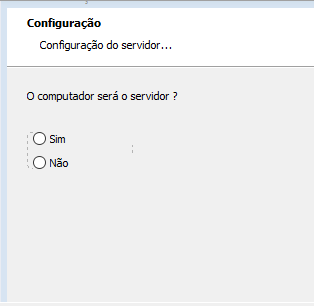
Hello people. I need that when selecting the option "Sim", start the installation of SQL Server 2012 Express and silent mode. Could you help me?
Re: Installation of SQL Server 2012 Express Silent Condition
Hello Diego and welcome to Advanced Installer,
Could you please give me some more details about your scenario so I can better assist you?
For instance, when "Sim" is selected, you want to install SQL Server silently, but what about "Nao" being selected - what you want to happen in that case? Should SQL installation be skipped or installed with full UI?
Looking forward to hearing from you.
Best regards,
Catalin
Could you please give me some more details about your scenario so I can better assist you?
For instance, when "Sim" is selected, you want to install SQL Server silently, but what about "Nao" being selected - what you want to happen in that case? Should SQL installation be skipped or installed with full UI?
Looking forward to hearing from you.
Best regards,
Catalin
Re: Installation of SQL Server 2012 Express Silent Condition
When "Não" is selected, simply do not install SQL.
I am also trying to install the program in "SAP Crystal Reports (CRRuntime_32bit_13_0_26)" in silent mode based on resources, but I did not get exite, as it always gives an error. It is an error in the commands for silent installation (Full UI).

I am also trying to install the program in "SAP Crystal Reports (CRRuntime_32bit_13_0_26)" in silent mode based on resources, but I did not get exite, as it always gives an error. It is an error in the commands for silent installation (Full UI).
Re: Installation of SQL Server 2012 Express Silent Condition
Hello Diego,
- open your Advanced Installer project
- go to "Dialogs" page
- select the Radio Button Group control
- when selecting it, please have a look on the right pane. There, you should be able to see the property that is assigned to the Radio Button Group control
- from it, select the "Sim" value
- when selecting it, please have a look on the right pane. There, you should be able to see the value
There are some limitations here that we need to keep in mind:
- the prerequisite should be added as a feature-based prerequisite (so we can condition its installation)
- you can install SQL Server as a feature-based prerequisite only starting from SQL Server 2012 Service Pack 2 (SP2), due to an SQL Server limitaiton. You can find more information here:
Why does the SQL Server installation hangs?
After doing so, please go to "Organization" page --> select the feature for your "SQL Server" prerequisite and under "Installation Behavior", select the "Not installed" by default and in the "Install if" field, please insert a condition as it follows:
This way, SQL Server will only be installed if desired value was selected.
In what regards this:
Please make sure you are passing the correct command line parameters to your prerequisite. You can probably check these parameters on the creator's website/forums.
Hope this helps.
Best regards,
Catalin
If that is the case, then you can proceed as it follows:When "Não" is selected, simply do not install SQL.
- open your Advanced Installer project
- go to "Dialogs" page
- select the Radio Button Group control
- when selecting it, please have a look on the right pane. There, you should be able to see the property that is assigned to the Radio Button Group control
- from it, select the "Sim" value
- when selecting it, please have a look on the right pane. There, you should be able to see the value
There are some limitations here that we need to keep in mind:
- the prerequisite should be added as a feature-based prerequisite (so we can condition its installation)
- you can install SQL Server as a feature-based prerequisite only starting from SQL Server 2012 Service Pack 2 (SP2), due to an SQL Server limitaiton. You can find more information here:
Why does the SQL Server installation hangs?
After doing so, please go to "Organization" page --> select the feature for your "SQL Server" prerequisite and under "Installation Behavior", select the "Not installed" by default and in the "Install if" field, please insert a condition as it follows:
Code: Select all
THE_PROPERTY_OF_YOUR_RADIOBUTTONGROUP_CONTROL = the_valueIn what regards this:
I am not quite sure I understand what you mean here. I can not see any command in the screenshot you have provided.I am also trying to install the program in "SAP Crystal Reports (CRRuntime_32bit_13_0_26)" in silent mode based on resources, but I did not get exite, as it always gives an error. It is an error in the commands for silent installation (Full UI).
Please make sure you are passing the correct command line parameters to your prerequisite. You can probably check these parameters on the creator's website/forums.
Hope this helps.
Best regards,
Catalin


FOLLOW US